> For the complete documentation index, see [llms.txt](https://transactiontool.hedera.com/llms.txt). Markdown versions of documentation pages are available by appending `.md` to page URLs; this page is available as [Markdown](https://transactiontool.hedera.com/files/reading-a-file.md).
# Reading a file
## Overview
This guide walks you through reading an existing file from the Hedera File Service using the Transaction Tool. The file reading process retrieves the contents of a file stored on the Hedera network using its unique File ID. Once retrieved, the contents are stored locally by the Transaction Tool and displayed in the interface, allowing you to view the data directly.
{% hint style="info" %}
**Note:** Reading a file from the Hedera network requires submitting a **File Contents Query**. You must have the File ID of the file you want to read. The query incurs a small fee paid in HBAR.
{% endhint %}
***
## Prerequisites
Before you begin, you should have completed the following:
* **Transaction Tool Setup:** [New User Installation Guide](https://docs.hedera.com/hedera-transaction-tool-v2/general/install-new-users).
* **User Account Configuration:** [Account Setup](https://docs.hedera.com/hedera-transaction-tool-v2/general/install-new-users/account-setup) process to create your primary account.
You should also have:
* **File ID:** The unique identifier of the file you want to read (format: 0.0.xxxxx).
* **Payer Account:** An account with sufficient HBAR balance to pay query fees.
***
### File Query Properties
| Property | Description | Required | Example |
| -------- | --------------------------------------------------- | -------- | --------- |
| File ID | The unique identifier of the file on Hedera network | Yes | 0.0.12345 |
### Transaction Properties
| Property | Description | Required | Example |
| --------------- | ----------------------------------------------------------------------- | -------- | ------------------------- |
| Payer ID | Account ID from which the query fee is deducted | Yes | Select from dropdown menu |
| Max Query Fee ℏ | Maximum fee in HBAR willing to pay for the query (default 2, minimum 0) | No | 2 |
***
## Step-by-Step GuideStep-by-Step Guide
### Step 1: Access the File Reading Interface
You can access the Read files form in two ways:
#### Method 1 – Using the Main Menu
* Select **Create New,** then **choose Transaction.**
* Select **File**, then choose **Read File**.
#### Method 2 – From the left navigation panel
* Select Files.
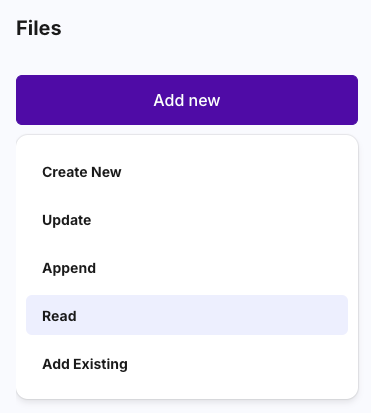
* On the Files page, select **Add New** then choose **Read** from the dropdown menu.
***
### Step 2: Configure File Reading Parameters
* In the **File ID** field, enter the unique identifier of the file you want to read.
* Verify that the File ID follows the correct format (0.0.xxxxx).
* From the **Payer ID** dropdown, select the account that will pay the query fee.
* In the **Max Query Fee** field, set the maximum HBAR amount you are willing to pay for the query (default is 2 HBAR).
***
### Step 3: Execute the File Query
* Select **Sign and Read** on the top right corner.
* In the authentication prompt, confirm the transaction.
* If you set up the Transaction Tool using an **email address and password**, you will be prompted to enter your system password.
* If you set up the Transaction Tool using the **keychain option**, the transaction executes automatically — no additional signing prompt appears.
***
### Step 5: View File Contents
* Once the query is successful, the file contents display in the interface.
* You can view the file data directly within the Transaction Tool. Since this is a **paid query**, the contents are also stored locally for reference.
{% hint style="info" %}
**Note:** The file contents appear as they were stored on the network.
{% endhint %}
***
---
# Agent Instructions
This documentation is published with GitBook. GitBook is the documentation platform designed so that both humans and AI agents can read, navigate, and reason over technical content effectively. Learn more at gitbook.com.
## Querying This Documentation
If you need additional information that is not directly available in this page, you can query the documentation dynamically by asking a question.
Perform an HTTP GET request on the current page URL with the `ask` query parameter, and the optional `goal` query parameter:
```
GET https://transactiontool.hedera.com/files/reading-a-file.md?ask=&goal=
```
`ask` is the immediate question: it should be specific, self-contained, and written in natural language.
`goal` is optional and describes the broader end goal you are ultimately trying to accomplish on behalf of the user. GitBook uses it to tailor the answer towards what is most useful for that goal.
The response will contain a direct answer to the question and relevant excerpts and sources from the documentation.
Use this mechanism when the answer is not explicitly present in the current page, you need clarification or additional context, or you want to retrieve related documentation sections.